NOUN TMA Portal Login Guide: How to Login, Access TMA 1, TMA 2 & TMA 3
If you are a student of the National Open University of Nigeria (NOUN) and you are looking for the correct NOUN TMA portal login procedure, you are in the right place.
The NOUN Tutor Marked Assignment (TMA) portal is an important platform where students access and complete their online continuous assessments. New students, returning students, and students who are having difficulty accessing their TMA dashboard may have questions about the correct login details, how to find their courses, how to submit TMAs, how to check TMA scores, and what to do when a course is not showing on the portal.
In this comprehensive guide, we explain everything you need to know about the NOUN TMA portal login, including how to access the portal, the login details for new and returning students, how to take TMA 1, TMA 2 and TMA 3, how to check your TMA results, and common solutions to login problems.
What Is the NOUN TMA Portal?
The NOUN TMA portal is the online platform used by students of the National Open University of Nigeria to access and complete Tutor Marked Assignments and other online learning activities.
NOUN refers to these assessments as Tutor Marked Assignments (TMAs). They form an important part of students’ continuous assessment and are administered online through the University’s e-learning system.
The University’s Directorate of Management Information System (DMIS) identifies eTMA – Electronic Tutor Marked Assessment System as one of the applications developed and deployed by NOUN.
Students should therefore take their TMAs seriously because failing to complete them can affect their overall academic performance.
For a broader explanation of how TMA works, students can also read our guide on What You Need to Know About NOUN TMA.
NOUN TMA Portal Login Link
The official NOUN e-learning/TMA portal is:
The NOUN official FAQ directs students to the e-learning portal for accessing Tutor Marked Assignments and explains the login procedure for both new and returning students.
Always make sure that you are using the correct NOUN website before entering your login details.
Students should also be careful with websites that imitate official NOUN portals or request unnecessary personal information.
How to Login to the NOUN TMA Portal
Follow the steps below to access your NOUN TMA dashboard.
Step 1: Visit the NOUN eLearn Portal
Open your browser on your phone, tablet or computer.
Enter:
elearn.nou.edu.ng
You should arrive at the NOUN e-learning platform.
The platform is powered by Moodle and provides access to NOUN courses, TMA activities and other learning resources.
Step 2: Enter Your Username
Your username depends on whether you are a new or returning student.
For many new students, NOUN states that the initial username is the student’s matriculation number, with the appropriate prefix entered in lowercase.
For example:
nou123456789
Make sure you enter the matriculation number correctly.
Avoid adding unnecessary spaces before or after the username.
Step 3: Enter Your Password
For new students, the initial password is generally the matriculation number used during the initial login process.
After your first successful login, you may be required to change your password.
Returning students should normally use the login credentials they used in the previous semester unless they have reset their password.
NOUN’s official FAQ specifically states that returning students can continue using their previous semester’s password unless they have forgotten it.
Step 4: Click Login
After entering your username and password, click the Login button.
If your details are correct and your account has been activated, you should be taken to your NOUN e-learning dashboard.
Step 5: Locate Your Course
After logging in, look through your dashboard for the course you want to take.
Your registered courses should appear on your e-learning/TMA dashboard once the relevant registration information has been processed.
NOUN explains that course registration and examination registration must be completed before courses become available for TMA purposes. The University’s FAQ also states that changes can take up to two working days after registration to reflect on the portal.
How to Take NOUN TMA 1
Once you have successfully logged into the portal and located your course, follow these steps:
- Click on the course.
- Scroll through the course page.
- Locate the TMA section.
- Look for Tutor Marked Assignment 1 (TMA1).
- Click on TMA1.
- Read the instructions carefully.
- Answer the questions.
- Review your answers before submitting.
- Submit the TMA.
According to the official NOUN FAQ, students normally need to complete TMA 1 before gaining access to TMA 2, followed by TMA 3.
This means that if you cannot see TMA 2, one of the first things to check is whether you have successfully completed and submitted TMA 1.
How to Access NOUN TMA 2
After successfully completing TMA 1, the next assignment should become available according to the course’s assessment arrangement.
To access TMA 2:
- Login to the NOUN eLearn portal.
- Open the relevant course.
- Scroll to the TMA section.
- Select TMA2.
- Read the instructions.
- Answer the questions.
- Review your answers.
- Submit the assignment.
If TMA 2 is not available, check whether TMA 1 has actually been submitted.
You should also confirm that the TMA is currently open.
How to Access NOUN TMA 3
TMA 3 follows the same general process.
After completing TMA 2, return to the course page and locate the TMA section.
Select TMA3, answer the questions and submit the assignment before the applicable deadline.
The official NOUN FAQ explains the sequence as TMA1, followed by TMA2 and then TMA3.
How to Check Your NOUN TMA Score
After completing a TMA, students may want to check their scores.
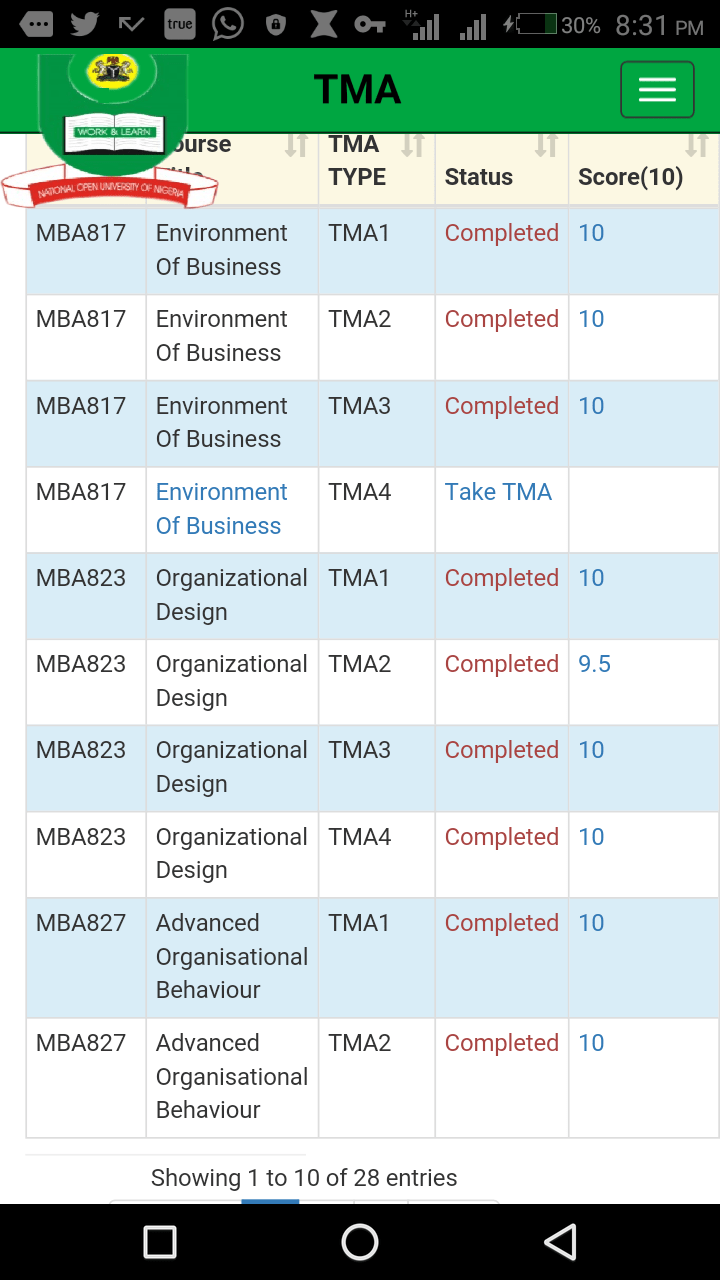
According to NOUN’s official FAQ, students can access their TMA grades by logging into the TMA/e-learning portal and navigating to a course.
The FAQ explains that students can select a course and use the relevant grade/report option to view their TMA results. It also indicates that an Overview report can be used to view TMA grades.
To check your result:
- Login to the NOUN eLearn portal.
- Select the relevant course.
- Locate the grade or report area.
- Open the relevant report.
- Check your TMA score.
Remember that the exact appearance of the portal may change when NOUN updates its e-learning system.
How Many TMAs Does NOUN Have?
The number and structure of continuous assessment activities can depend on the course and current NOUN assessment arrangements.
However, the standard NOUN e-learning process commonly presents TMAs as TMA 1, TMA 2 and TMA 3.
The University’s official FAQ specifically refers to these three stages when explaining how students access their TMAs.
Students should always follow the instructions displayed inside their individual course because assessment arrangements may differ between courses or academic sessions.
Why Is My NOUN TMA Course Not Showing?
One of the most common questions students ask is:
“Why is my course not showing on the NOUN TMA portal?”
There are several possible reasons.
1. You Have Not Completed Your Registration
If you have not completed the required course and examination registration, your courses may not appear on the TMA portal.
NOUN’s official FAQ states that registered courses become visible after the necessary registration process has been completed.
2. Your Registration Has Not Yet Reflected
Sometimes, you may have completed your registration but your courses are not immediately visible.
NOUN states that it can take approximately two working days after registration for changes to reflect on the portal.
Therefore, do not immediately assume that your registration failed.
3. You Did Not Register for the Examination
According to the NOUN FAQ, courses for which you have not completed examination registration may not appear on the TMA portal.
This is an important point for students who believe that course registration alone is enough.
4. TMA Has Not Started
Another possibility is that the TMA assessment has not yet commenced.
NOUN explains that a new student’s e-learning access may become available when facilitation and TMA activities commence.
5. Your Student Records Have Not Been Uploaded
If your student information has not yet been uploaded or activated on the e-learning platform, you may experience difficulty logging in or accessing courses.
In such cases, students may need to contact the appropriate NOUN support channel.
What to Do If NOUN TMA Portal Says “User Not Recognized”
Seeing “User not recognized” can be frustrating, especially when you are sure that you are a registered student.
NOUN’s official FAQ addresses this issue.
For students who are unable to access the e-learning portal after registration, the University advises that access may depend on the completion of the relevant registration process and the commencement of facilitation and TMA activities.
Try the following:
- Confirm that you entered your matriculation number correctly.
- Check that you are using the correct lowercase prefix where required.
- Confirm that you have completed course and examination registration.
- Wait for your registration information to reflect if you recently registered.
- Confirm that TMA activities have commenced.
- Try accessing the portal again later.
- If the problem continues, contact the appropriate NOUN support office.
How to Reset Your NOUN TMA Password
Forgotten your NOUN e-learning password?
Do not panic.
NOUN provides a password-reset option.
According to the University’s official FAQ, returning students who have forgotten their password should use the Forgot Password option and provide their NOUN student email. A password-reset message can then be sent to the student’s NOUN email, provided the student’s records have been properly uploaded to the platform.
Password Reset Steps
- Go to the NOUN eLearn login page.
- Select the Forgot Password option.
- Enter the requested information.
- Follow the password-reset instructions sent to your NOUN student email.
- Create or confirm your new password.
- Return to the eLearn portal and log in again.
Keep your new password secure.
Do not give your password to another person simply because they claim they can help you access the portal.
NOUN TMA Login for New Students
If you are a newly admitted NOUN student, your first login may be different from that of a returning student.
NOUN’s official FAQ states that new students can initially use their matriculation number as both username and password, with the prefix entered in lowercase. After logging in, students are prompted to change the password and verify important information such as their email address, programme and study centre.
Therefore, new students should carefully complete the initial profile and password setup.
Do not ignore incorrect information displayed on your account.
If your email address, programme or study centre is incorrect, follow the portal instructions for updating the information.
NOUN TMA Login for Returning Students
Returning students generally do not need to create a completely new account every semester.
According to NOUN, returning students can use their previous semester’s login credentials, provided they have not forgotten or changed their password.
If you changed your password previously, use your current password rather than automatically using your matriculation number.
Can I Access NOUN TMA on My Phone?
Yes.
The NOUN e-learning portal can be accessed through a web browser on a smartphone, tablet or computer.
However, students should make sure they have:
- A reliable internet connection
- An updated web browser
- Their correct login details
- Enough battery power
- A stable environment for completing the assessment
If possible, using a computer can make it easier to navigate longer course pages and assessment screens.
What to Do Before Submitting Your NOUN TMA
Before clicking the final submit button, take your time to review your answers.
A good TMA checklist is:
- Read every question carefully.
- Make sure you have answered every required question.
- Check that you selected the intended option.
- Confirm that you are working on the correct course.
- Ensure your internet connection is stable.
- Do not refresh the page unnecessarily during submission.
- Confirm that your submission was successful.
This is especially important because you do not want to discover after leaving the page that your attempt was not properly submitted.
Common NOUN TMA Portal Login Problems and Solutions
Problem: My username is not working
Check your matriculation number carefully.
Make sure you have entered the correct prefix and have followed the lowercase format required for initial login.
Problem: My password is incorrect
If you are a new student, check the initial password requirements.
If you are a returning student, use your current password.
If you have forgotten it, use the password-reset option.
Problem: My courses are missing
Confirm that your course and examination registration have been completed.
Also remember that NOUN states that registration changes may take up to two working days to appear.
Problem: TMA 2 is not showing
Check whether TMA 1 has been submitted successfully.
The official NOUN guidance indicates that TMA 1 must be completed before TMA 2 becomes accessible, and TMA 2 precedes TMA 3.
Problem: I cannot see the TMA section
Open the specific course and scroll through the course content.
The TMA section may not be immediately visible at the top of the page.
Problem: The portal is slow
A slow connection, heavy portal traffic or temporary technical issues may cause delays.
Try refreshing the page after waiting briefly.
You can also try a different browser or device.
Important NOUN Registration Information for TMA Students
Students should not wait until the final moment before checking their TMA portal.
Before TMA activities begin, confirm that:
- Your semester registration is complete.
- Your courses have been registered.
- Your examination registration has been completed.
- Your courses appear on the relevant portal.
- You can successfully log in.
- Your password works.
- You know when your TMAs are available.
- You have access to your NOUN student email.
Students who want more information about registration can also read our NOUN Student Portal Login Guide.
NOUN Student Portal vs NOUN TMA Portal
It is important not to confuse the NOUN Student Portal with the TMA/e-learning portal.
The Student Portal is used for activities such as student registration and other administrative functions.
The eLearn/TMA portal is used for online learning activities, including accessing courses and Tutor Marked Assignments.
NOUN’s official FAQ separately identifies the Student Portal at nouonline.net and the e-learning/TMA platform at elearn.nou.edu.ng.
Students should therefore use the correct platform for the task they want to perform.
NOUN TMA and Your Final Grade
Tutor Marked Assignments are not something students should ignore.
NOUN course materials and University documentation explain that continuous assessment contributes to students’ overall course assessment. For example, NOUN documentation describes TMA/continuous assessment as contributing 30% of the total course score, with the final examination contributing the remaining 70% in the relevant assessment structure.
This means that completing your TMAs can make a significant difference to your final academic performance.
Even when you are confident about passing the final examination, you should still take the continuous assessment seriously.
Tips for Scoring Higher in NOUN TMA
Study Your NOUN Course Materials
The best place to start when preparing for a TMA is your official course material.
Read the relevant units before attempting the assessment.
NOUN’s course materials are specifically designed to support students’ learning and include self-tests, exercises and Tutor Marked Assignments.
Do Not Rush
Read each question carefully.
Some questions may contain words such as:
- NOT
- EXCEPT
- BEST
- MOST
- LEAST
- TRUE
- FALSE
Missing one of these words can completely change the meaning of a question.
Review Your Answers
If the system allows you to review your responses before submission, use the opportunity.
Do not submit an assessment simply because you want to finish quickly.
Keep Track of Your TMA Activities
Maintain a simple list of your courses and the TMAs you have completed.
For example:
| Course | TMA 1 | TMA 2 | TMA 3 |
|---|---|---|---|
| CHM409 | Completed | Pending | Pending |
| GSTxxx | Completed | Completed | Pending |
| PHSxxx | Completed | Pending | Pending |
This can help you avoid forgetting a course.
Other Useful NOUN Resources for Students
Educational Hub provides several resources that can help NOUN students throughout the semester.
If you are planning your semester expenses, you can check our NOUN School Fees per Semester guide.
Students can also use our NOUN School Fee Checker to help estimate applicable fees and registration costs.
If you are a new student, our NOUN Information for New Students guide can also help you understand important registration and academic procedures.
For examination planning, see our guide on How to Download the NOUN E-Exam Timetable.
And if you want a detailed explanation of Tutor Marked Assignments themselves, read What You Need to Know About NOUN TMA.
Frequently Asked Questions About NOUN TMA Portal Login
What is the official NOUN TMA portal?
The NOUN e-learning/TMA portal is elearn.nou.edu.ng. NOUN’s official FAQ directs students to this platform for accessing TMAs.
What is the username for a new NOUN student?
For initial access, NOUN states that a new student’s matriculation number is used as the username, with the required prefix in lowercase.
What is the password for a new NOUN student?
The initial password for new students is generally the student’s matriculation number, after which the student is prompted to change the password.
Can returning students use their old password?
Yes. NOUN states that returning students’ previous semester password remains valid unless it has been forgotten or changed.
Why is my NOUN course not showing on the TMA portal?
Possible reasons include incomplete course or examination registration, delayed processing of registration information, or TMA activities not yet commencing.
How long does it take for registered courses to appear?
NOUN’s official FAQ states that registered courses and changes can take up to two working days to reflect after the relevant registration process has been completed.
Can I access NOUN TMA with my phone?
Yes. You can access the e-learning portal using a smartphone with a compatible web browser and internet connection.
What should I do if I forget my TMA password?
Use the Forgot Password option and follow the instructions provided by NOUN. Returning students may be required to use their NOUN student email for the password-reset process.
Why can’t I access TMA 2?
One of the first things to check is whether TMA 1 has been successfully completed and submitted. NOUN’s official guidance states that TMA 1 must be completed before TMA 2 and TMA 2 before TMA 3.
Is NOUN TMA important?
Yes. TMA forms part of the continuous assessment component of relevant NOUN courses and contributes to the overall course score.
Final Thoughts on NOUN TMA Portal Login
The NOUN TMA portal login process is straightforward once you understand which portal to use and how your login credentials work.
For new students, the initial login generally involves using the matriculation number as the username and password before changing the password. Returning students can normally continue using their existing credentials.
After logging in, select your course, locate the TMA section and complete the available assessments in the required order. Remember that TMA 1 comes before TMA 2, while TMA 2 comes before TMA 3.
If your courses are missing, your first step should be to check your course and examination registration. Also remember that NOUN indicates that registration information may take up to two working days to appear on the portal.
Most importantly, do not wait until the last minute before attempting your TMA. Log in early, confirm that your courses are available, study your course materials and complete each assessment before the applicable deadline.
For official information, students should always cross-check important portal and academic instructions with the National Open University of Nigeria (NOUN) website and official announcements.
For additional student resources, continue exploring Educational Hub for NOUN registration guides, school fees information, course resources, examination updates, TMA information and other academic guides.